Best Free Subtitle and Caption Editors Compared (2026)
The best free subtitle and caption editors compared honestly: Subtitle Edit, Aegisub, YouTube Studio, Kapwing and CadreScripts Desk, and who each is for.
In this article
Search “free subtitle editor” and you’ll find a dozen lists that all recommend the same tools in a slightly different order, usually without saying who each one is for. This one is different in two ways: we say what each editor is best at, including where ours isn’t the right pick, and we checked every fact on the tool’s own site on 6 November 2026.
For a free desktop all-rounder, use Subtitle Edit. For styled, typeset subtitles, use Aegisub. For captions that only live on YouTube, YouTube Studio is enough. For quick social clips, an online video editor like Kapwing works, with a watermark on its free plan. For a browser editor with no install, professional caption rules and every export format, use CadreScripts Desk.
The best free subtitle editors at a glance
| Editor | Runs on | Install? | Watermark on free use | Best for |
|---|---|---|---|---|
| Subtitle Edit | Windows, macOS, Linux | Yes | No | All-round desktop subtitle work |
| Aegisub | Cross-platform desktop | Yes | No | Styling and typesetting |
| YouTube Studio | Browser | No | No | Captions for your own YouTube videos |
| Kapwing (free plan) | Browser | No | Yes | Quick captioned social clips |
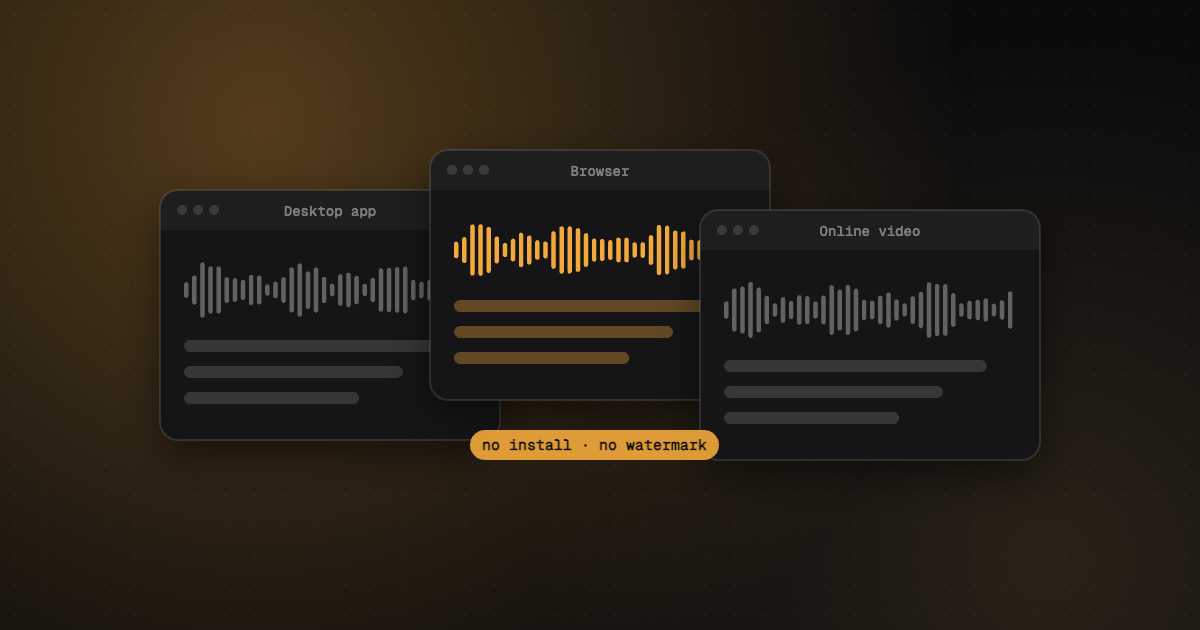
| CadreScripts Desk | Browser, including phones | No | No (caption files) | Rule-checked captions and transcripts |
All facts from each product’s own site or help pages, checked 6 November 2026. Features and prices change, so check before you commit.
How we compared them
We looked at what actually matters when you’re subtitling a real video:
- Cost and catches: is it truly free, or free with a watermark or a time limit?
- Timing tools: a waveform or timeline, shifting and re-syncing.
- Quality checks: line length, reading speed, overlaps.
- Formats: can it open and save the files your platform needs?
- Setup: install, operating system, learning curve.
1. Subtitle Edit: the best free desktop all-rounder
Subtitle Edit is free and open source (MIT license) and, according to its project page, runs on Windows 10 or newer, macOS 12 or newer, and Linux. It’s the tool many professional subtitlers keep open all day: it handles a huge range of formats, shows video and audio for timing, and can connect to optional online services for speech-to-text and translation.
Choose it if you subtitle often, work on one computer, and don’t mind a busy interface. Skip it if you’re on a locked-down work laptop where you can’t install software, or you want something simpler for an occasional video.
2. Aegisub: best for styled and typeset subtitles
Aegisub describes itself as a free, cross-platform, open-source tool for creating and modifying subtitles, with timing against audio, styling tools and a real-time video preview. It’s famous among fansubbers for detailed styling and positioning: signs translated in place, colored text, effects.
Choose it if you need fine control over how subtitles look. Skip it if you just need clean, standard captions for YouTube or a course; it’s more tool than that job needs, and it’s built around its own styled subtitle format.
3. YouTube Studio: enough if the video lives on YouTube
YouTube’s built-in subtitle editor is free and already there. According to YouTube Help, you can upload a subtitle file with or without timing, paste a transcript and let YouTube auto-sync it to the video, or type captions as the video plays.
Choose it if YouTube is the only place the video goes. Skip it if you need the same captions on other platforms, want reading-speed checks, or need precise control over line breaks. It also can’t help with a video you haven’t uploaded.
4. Kapwing: quick captioned clips, with a watermark on free
Kapwing is an online video editor with automatic subtitles. Its pricing page says the free plan exports with a watermark, at up to 720p, for videos up to 4 minutes, with auto-subtitling limited to 10 minutes; the Pro plan is listed at $16.
Choose it if you want to caption and edit a short social clip in one place and the watermark doesn’t matter. Skip it if you need a clean export, longer videos, or caption files for other platforms on the free plan.
5. CadreScripts Desk: browser-based, with professional caption rules
Full disclosure: this one is ours. CadreScripts Desk runs in the browser, works on phones, and needs no account to edit captions or transcripts. When you’re not signed in, nothing you open leaves your device.
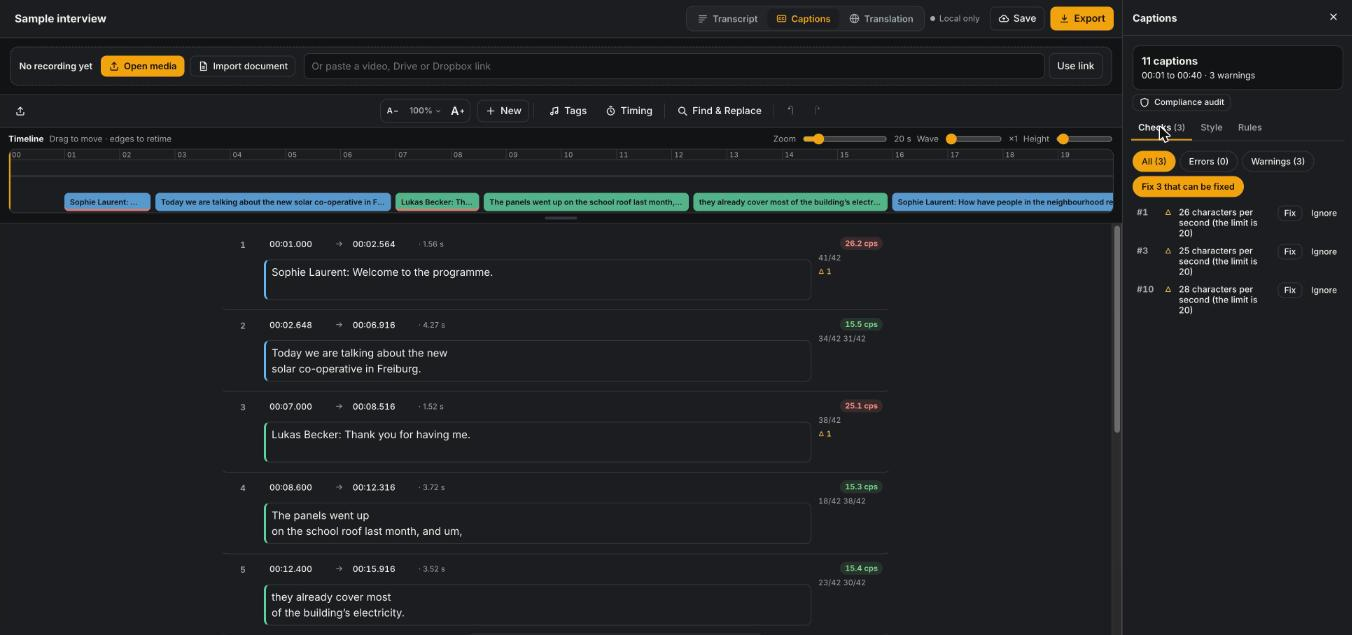
What it does well:
- Caption rules built in: Netflix (adults and children), US broadcast or custom, with checks for line length, reading speed, duration, gaps, overlaps and shot changes, and a Fix for many of them.
- Every common format: imports and exports SRT, WebVTT, TTML/IMSC, DFXP, Scenarist SCC and YouTube SBV.
- Transcript and captions together: build captions from a transcript, keep both in one project, and export Word or PDF as well.
- Timing tools: shift everything, change frame rate, or sync with two points.
Where it isn’t the right pick: if you need Aegisub-style typesetting, use Aegisub. Transcribing a recording, translating, and exporting a video with captions burned in all need an account. And it’s a browser tool, so for very long sessions on one machine some people prefer a desktop app.
Which free subtitle editor should you choose?
| If you… | Use |
|---|---|
| Subtitle every day on your own computer | Subtitle Edit |
| Need styled, positioned, colored subtitles | Aegisub |
| Only publish on YouTube | YouTube Studio |
| Want a captioned TikTok in five minutes and don’t mind a watermark | Kapwing free plan |
| Can’t install software, or work on several devices | CadreScripts Desk |
| Must meet Netflix-style or broadcast rules | CadreScripts Desk or Subtitle Edit |
| Need a transcript and captions from the same recording | CadreScripts Desk |
Free tools for one-off jobs
Sometimes you don’t need an editor at all, just one quick fix. These free browser tools each do one job, and your files stay on your computer:
- SRT to VTT and VTT to SRT converters
- Subtitle converter for SRT, WebVTT, SBV and plain text in any direction
- Subtitle timing shifter for captions that are early or late
- Caption reading speed checker against Netflix, BBC and broadcast rules
When free isn’t enough
Every free editor still needs someone to do the work: listen, time, check, fix. For a weekly show that’s fine. For a 40-hour course backlog, a public body facing accessibility deadlines, or captions going to a broadcaster, it may be cheaper to hand it over. Our human-verified captions start from $1.30 a minute (pricing). For a step-by-step walkthrough of doing it yourself, see our guide on how to add subtitles to a video for free.
Desktop editors can choke on a long, high-resolution video. In CadreScripts Desk, if playback can’t keep up it offers light playback: sound only, with the captions and waveform still working. Free, with nothing to install.
Frequently asked questions
What is the best free subtitle editor?
For most people working on a desktop, Subtitle Edit. If you can’t install software or want caption rules and transcripts in the browser, CadreScripts Desk. For typesetting, Aegisub.
Is there a free subtitle editor without a watermark?
Yes. Subtitle Edit, Aegisub, YouTube Studio and CadreScripts Desk don’t watermark caption files. Some online video editors add a watermark to exported videos on their free plans.
Can I edit subtitles online without installing anything?
Yes. YouTube Studio works for your own YouTube videos, and CadreScripts Desk opens SRT, VTT and other caption files in the browser, with nothing to install.
Which subtitle editor works on Mac?
Subtitle Edit lists macOS 12 or newer, Aegisub is cross-platform, and any browser-based editor works on a Mac.
Do free subtitle editors check reading speed?
Some do. Subtitle Edit and CadreScripts Desk flag captions that are too fast to read; YouTube Studio doesn’t.
Your next step
Open a caption file and see the checks for yourself: try it free in your browser. Or skip the editing: get human-verified captions.