
Transcription
How to Transcribe Audio in Microsoft Word and Google Docs (Free Methods Tested)
How to transcribe audio with Microsoft Word’s Transcribe feature and Google Docs voice typing, their limits, and when a dedicated tool is the better choice.
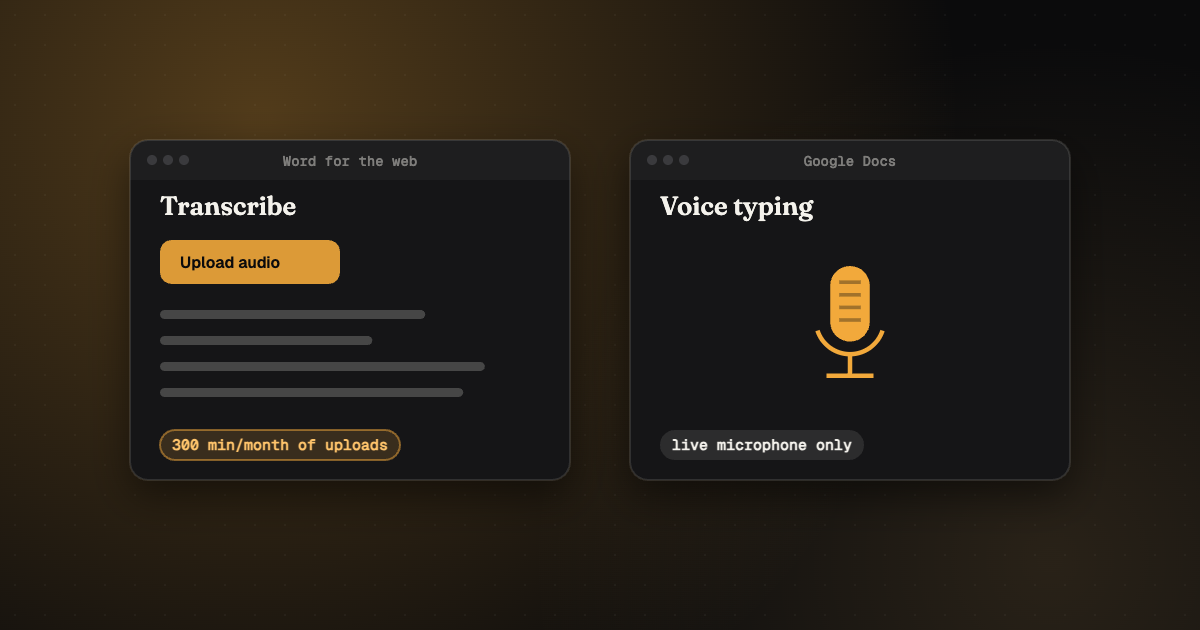
You already pay for Microsoft 365, or you live in Google Docs, and you’ve got a recording to transcribe. Before you sign up for yet another tool, it’s worth knowing what the software on your computer can already do. Short version: one of them is genuinely useful, and the other is mostly a clever workaround.
Microsoft Word for the web can transcribe uploaded audio files (.mp3, .wav, .m4a, .mp4) with speaker labels, but needs a Microsoft 365 subscription and caps uploads at 300 minutes a month. Google Docs voice typing only listens to a live microphone, so recordings have to be played out loud in real time. For anything regular, a dedicated transcription tool and editor will save you time.
Transcribe audio in Microsoft Word
Word’s Transcribe feature lives in Word for the web, not every desktop version. According to Microsoft’s help page (checked 6 November 2026):
- Sign in to Microsoft 365 in Edge or Chrome and open a document in Word for the web.
- Go to Home → Dictate (the arrow) → Transcribe.
- Choose Upload audio and pick a .wav, .mp4, .m4a or .mp3 file. You can also record directly in Word.
- Keep the Transcribe pane open while it works. Longer files take a while.
- Review the transcript in the pane, rename speakers, then add it to your document.
| Word Transcribe | What to know |
|---|---|
| Cost | Included with a Microsoft 365 subscription |
| Upload limit | 300 minutes of uploaded audio a month on a standard subscription (more with a Microsoft Copilot license) |
| Formats | .wav, .mp4, .m4a, .mp3 |
| Speakers | Labelled automatically, renameable |
| Where | Word for the web |
Good for: occasional interviews and meetings when you already have Microsoft 365. Not great for: weekly volume (five hours goes fast), noisy audio, or recordings that mix languages.
Transcribe audio with Google Docs voice typing
Google Docs has voice typing under Tools → Voice typing, in Chrome. It types what your microphone hears, live. There’s no upload button, so to transcribe a recording you play it out loud near the microphone (or route the audio through a virtual microphone) and let Docs listen.
- Open a Google Doc in Chrome and choose Tools → Voice typing.
- Pick the language from the microphone box.
- Click the microphone and play your recording, ideally from a second device next to the laptop.
- Keep the Docs tab in front; switching tabs can stop it.
- Fix punctuation, paragraphs and speakers by hand afterwards.
Voice typing runs in real time, so an hour of audio takes an hour. It doesn’t label speakers, and room noise or a quiet speaker lowers accuracy fast. It works best for dictating your own notes.
Word vs Google Docs vs a dedicated tool
| Word Transcribe | Docs voice typing | Dedicated tool + editor | |
|---|---|---|---|
| Upload a recording | Yes | No (play it out loud) | Yes |
| Speed | Faster than real time | Real time | Minutes |
| Speaker labels | Yes | No | Yes |
| Limits | 300 min/month uploads | Chrome, live mic | Depends on plan |
| Captions (SRT/VTT) | No | No | Yes, in good editors |
Fixing the transcript afterwards
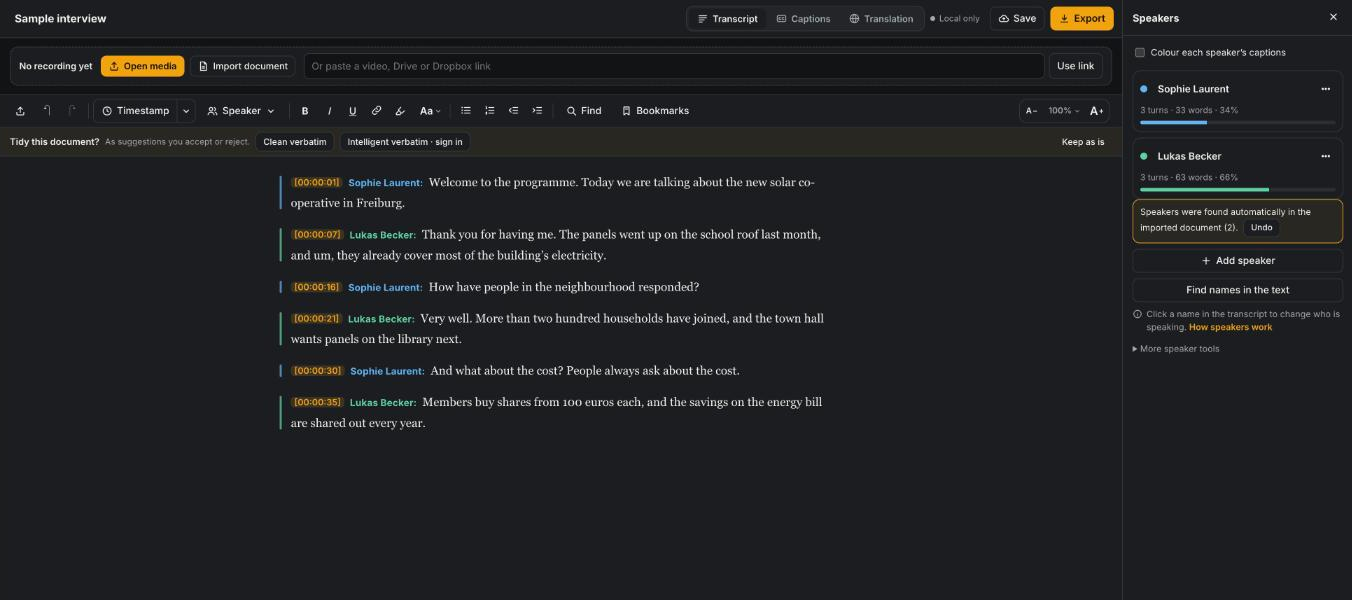
Whichever you use, the transcript needs checking against the audio. That’s where these tools are weakest: no click-to-play, no shortcuts for skipping back, no proofreading checks. You can paste or import the result into the free CadreScripts editor, open the recording beside it, and fix it with keyboard controls, speaker tools and timestamps. Word files you import keep their formatting and export exactly as they came in unless you change them.
For a full comparison of every method, free and paid, read our guide on how to transcribe audio to text. If the recording matters, human transcription starts from $0.80 a minute (pricing).
Frequently asked questions
Can Microsoft Word transcribe audio for free?
It’s included with a Microsoft 365 subscription, with a monthly cap of 300 minutes of uploaded audio on a standard subscription.
Can Google Docs transcribe an audio file?
Not directly. Voice typing only listens to a live microphone, so you have to play the recording aloud in real time.
Which is better for interviews, Word or Google Docs?
Word, because it accepts uploaded files and labels speakers. Google Docs voice typing suits dictating your own notes.
Your next step
Got a Word or Docs transcript to tidy? Try the editor free in your browser. Need it right without the fixing? Get human transcription.
Keep reading