
Transcription
How to Transcribe Audio to Text: Free and Paid Methods Compared
Four ways to transcribe audio to text, from free built-in tools to AI and human transcription, with a step-by-step workflow and honest advice on which to use.
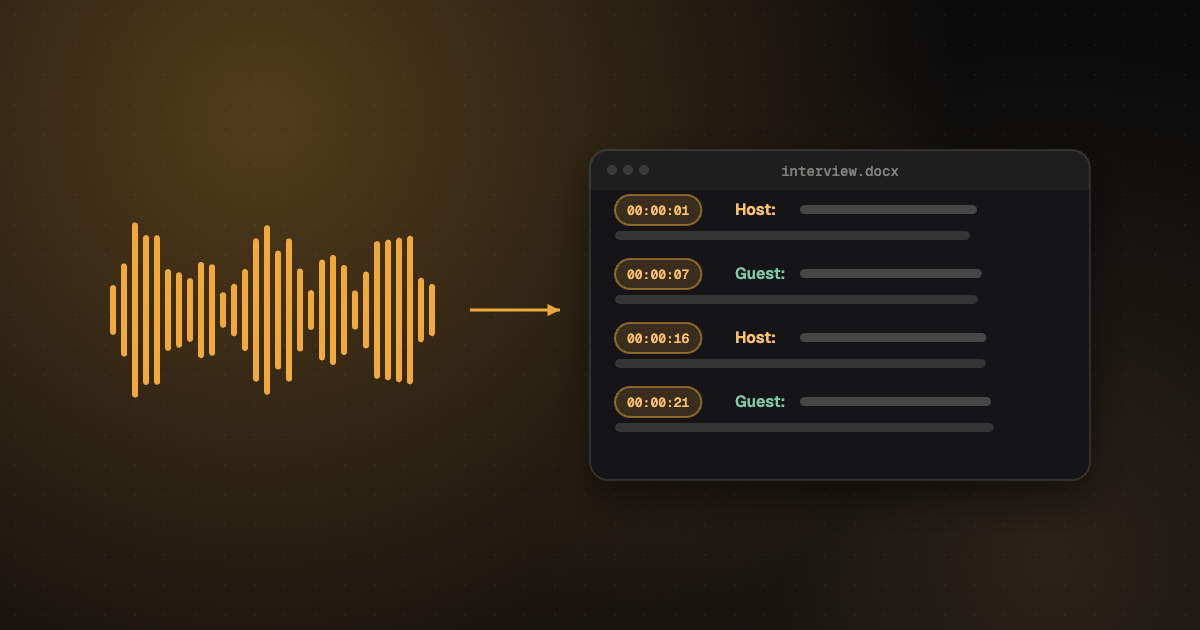
It’s Thursday night. You have a 52-minute interview, a deadline at nine tomorrow, and a growing suspicion that typing it out yourself will take until sunrise. Good news: you don’t have to. Here’s how to transcribe audio to text, free and paid, and how to pick the method that fits your recording instead of the one with the loudest ads.
To transcribe audio to text, upload the recording to an AI transcription tool, let it produce a first draft in minutes, then check that draft against the audio and fix names, numbers and speaker labels. Free options cover short or clear recordings; pay for human transcription when the audio is hard or the transcript must be word-perfect.
The four ways to transcribe audio to text
Every method you’ll find online is a version of one of these four. They differ in cost, speed and how much of your evening they eat.
| Method | Cost | Speed | Best for |
|---|---|---|---|
| Type it yourself | Free | Slow: several hours per hour of audio | Short clips, very sensitive material |
| Built-in tools (Word, Google Docs) | Free or part of a subscription | Real time or a little faster | Occasional, clear, one-speaker recordings |
| AI transcription service | Free tiers, then per minute or monthly | Minutes | Most interviews, meetings, podcasts, lectures |
| Human transcription | Per minute of audio | Hours to a day | Legal, research, publishing, difficult audio |
Most people end up using two of these together: AI for the first draft, then a human pass (theirs or a professional’s) to make it right. We’ll come back to that, because it’s the part most guides skip.
Method 1: Transcribe audio to text manually
Typing a transcript yourself costs nothing but time, and it gives you complete control. It’s also the slowest route by a long way. Even fast typists need several hours for one hour of clear speech, because you pause, rewind and replay constantly.
If you go this way, make it less painful:
- Slow the audio down. Playing at 0.75× lets you type in longer runs without stopping.
- Use keyboard shortcuts for the player so your hands never leave the keys. Reaching for the mouse every ten seconds adds up.
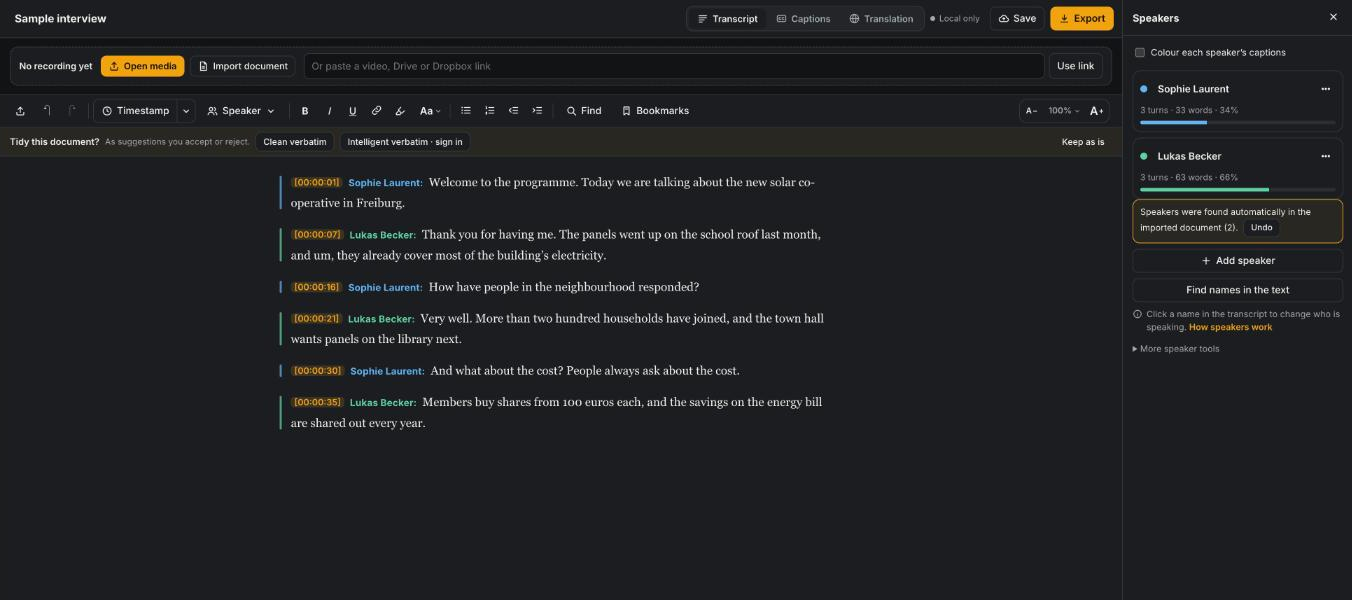
- Drop in a timestamp whenever you’re unsure of a word. You’ll find the spot again in seconds instead of scrubbing through the file.
- Write speaker names once, then reuse them. Typing “Interviewer:” 140 times is a special kind of boredom.
The free CadreScripts editor was built for exactly this kind of work: F2 and F3 skip back and forward, F4 inserts a timestamp at the cursor, and speaker shortcuts (Ctrl+Shift+1, Ctrl+Shift+2) drop in “Speaker 1:” and “Speaker 2:” where you’re typing. There’s even an option to pause the recording while you type and resume a moment after you stop.
Method 2: Built-in tools you may already have
Before paying for anything, check what’s already on your computer. Two big names come up in every search, and both have catches worth knowing before you start.
Microsoft Word’s Transcribe feature
Word for the web has a Transcribe button (Home → Dictate → Transcribe) that accepts uploaded .wav, .mp4, .m4a and .mp3 files and labels the speakers. It needs a Microsoft 365 subscription, and uploaded audio is capped at 300 minutes a month on a standard subscription, according to Microsoft’s own help page (checked 6 November 2026). Five hours goes quickly if you record weekly interviews.
Google Docs voice typing
Google Docs has voice typing (Tools → Voice typing) in Chrome, but it listens to your microphone live. There’s no upload button. The usual workaround is to play the recording out loud next to the mic, which works about as well as you’d expect: real-time only, no speaker labels, and every cough in the room becomes part of your transcript. Fine for dictating your own notes. Not great for a three-person meeting recording.
Built-in tools are tempting because they’re “free”, but check the limits first. A monthly cap or a live-only microphone can cost you more time than a proper tool would have.
Method 3: AI transcription services
This is where most people should start. You upload a file, and a speech recognition engine returns a draft transcript, usually in a few minutes, with timestamps and speaker labels. On a clean recording with one or two clear speakers, the draft is often good enough to need only light fixing.
Where AI still struggles is predictable once you’ve seen enough transcripts:
- Names and jargon. Your guest “Siobhan” becomes “Shivon”; your product becomes three unrelated words.
- Crosstalk. Two people talking at once confuses both the words and the speaker labels.
- Accents and mixed languages. A speaker who switches between Spanish and English mid-sentence trips up many tools.
- Bad audio. Echo, wind, a laptop fan or a phone on speaker all lower accuracy fast.
So the useful question isn’t “which AI is most accurate?” but “how quickly can I find and fix what it got wrong?” That depends on the editor you fix it in as much as the engine that wrote it.
What free AI tiers really give you
Free tiers are worth trying, but read the small print. Otter.ai’s free Basic plan, for example, includes 300 transcription minutes a month, stops at 30 minutes per conversation and allows only 3 audio or video file imports for the lifetime of the account, according to its pricing page (checked 6 November 2026). That suits live meetings better than a backlog of recorded interviews.
CadreScripts takes a different approach: the editor is free in your browser, with no account, for everything you do to a transcript you already have. Transcribing a new recording needs an account, which our team sets up, and is billed pay as you go from $0.15 a minute (with a $90 minimum order) or through a plan.
Method 4: Human transcription
A trained transcriptionist listens to every second and types what was said. It costs more and takes longer than AI, but a person can handle what software can’t: a mumbling guest, a heavy accent, a name they had to look up, or a lawyer who needs every “um” kept exactly as spoken.
Pay for a human when:
- the transcript will be published, quoted or used as evidence;
- the audio is noisy, has many speakers or mixes languages;
- you need a specific style, such as strict verbatim for research or legal work;
- your own time is worth more than the price difference.
At CadreScripts, human transcription starts from $0.80 a minute for an edited transcript and $1.10 a minute for verbatim, with a 24-hour turnaround on files up to an hour (current prices on our pricing page).
How to transcribe audio to text with AI, step by step
Here’s the workflow we’d recommend for most recordings. It takes the speed of AI and adds the one thing it lacks: someone checking.
- Prepare the file. Use the best version you have. If it’s a video, you can upload the video itself; there’s no need to strip the audio first. Trim long silences at the start if they’re obvious.
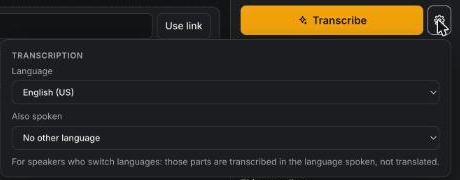
- Choose the language, and a second one if needed. If your speakers switch languages, tell the tool. In the CadreScripts editor, “Also spoken” transcribes those parts in the language spoken instead of guessing.
- Set the number of speakers. Telling the tool “up to 3” works better than letting it guess between 1 and 10.
- Add names and terms before you start. A short glossary of guest names, brands and technical words saves you fixing the same misspelling forty times later.
- Transcribe, then review the words the AI was unsure about. Good editors underline low-confidence words and let you step through them, playing each one. Start there; that’s where the mistakes cluster.
- Fix speakers. Rename “Speaker 1” to a real name once and every turn updates. Check the spots where one person interrupted another.
- Proofread and export. Run the spelling and layout checks, decide whether to keep timestamps, and export to Word, PDF or plain text.
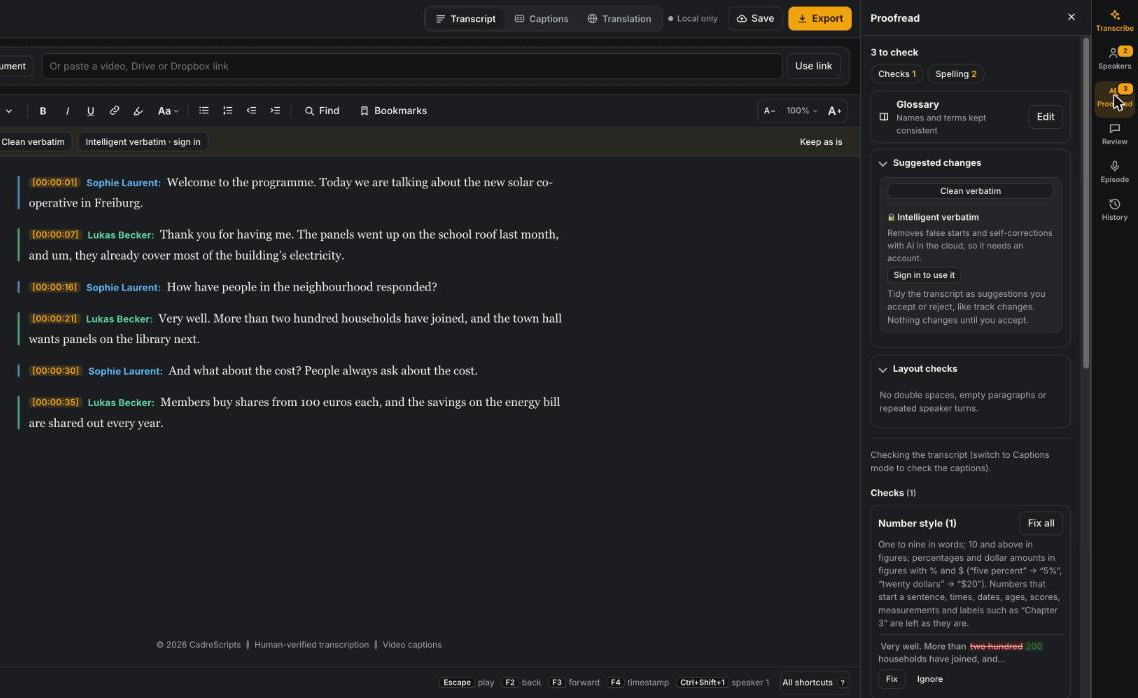
Already have an AI transcript from another tool? Open it in the CadreScripts editor, free, with nothing to install. Import a Word, .txt or .html file, fix it with the audio playing beside it, and export. Word files you upload keep their formatting and export exactly as they came in unless you change them.
Which method should you use?
Here’s the honest version, based on the recordings people actually send us.
| Your situation | Our pick |
|---|---|
| A 10-minute voice memo for your own notes | Any free tool, or type it |
| A weekly podcast or YouTube video | AI transcript, then a quick pass in an editor |
| Research or HR interviews you’ll quote | AI first draft plus a careful check, or human verbatim |
| A noisy focus group with eight people | Human transcription |
| Legal, medical or court-bound material | Human transcription, verbatim |
| Recordings that switch between two languages | AI with a second language set, then human review |
Honestly? For most people the answer is “AI plus 20 minutes of checking”. Pure AI leaves errors you’ll be embarrassed by later; pure manual typing is a poor use of an evening.
How to get a more accurate transcript
The single biggest factor in accuracy isn’t the software. It’s the recording. A few habits make every method work better:
- Get the mic close to the mouth. A cheap lapel mic 15 cm from someone beats an expensive one across the room.
- Record each person on their own track when you can, especially for remote interviews.
- Kill the background noise you control: fans, notifications, the coffee machine.
- Ask people to say their names at the start. Your future self will thank you when labeling speakers.
- Avoid speakerphone. Phone audio over a speaker is about the hardest thing to transcribe well.
If the audio itself is damaged, cleaning it before transcription can help. That’s sound work rather than text work, and it’s a separate human service: audio clean-up and restoration.
Exporting your transcript: formats that matter
Once the text is right, the format decides how useful it is. Pick based on where it’s going:
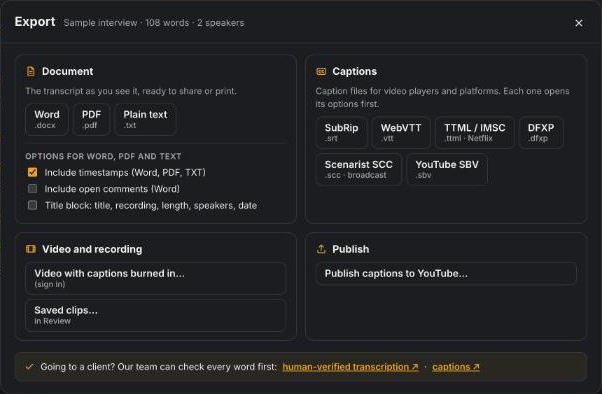
- Word (.docx) for clients, editing and sharing. Keeps speaker names in bold, timestamps and highlights.
- PDF for something final that nobody should change.
- Plain text (.txt) for pasting into other tools or analysis software.
- SRT or WebVTT if the transcript is becoming captions for a video.
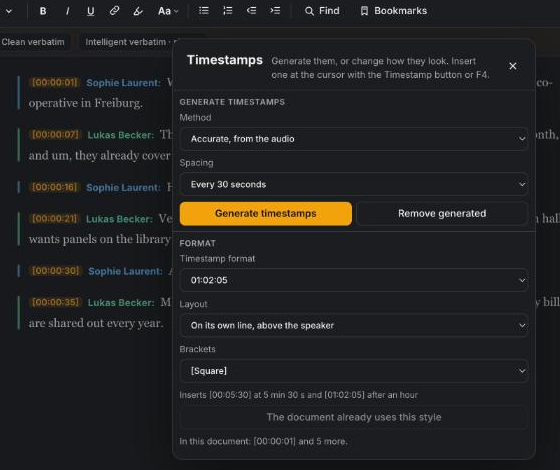
Timestamps are worth a decision of their own. Keep them for interviews you’ll quote from or edit video against; drop them for a clean read. In the editor you can generate them every 30 seconds, every minute or every paragraph, and change their format before you export.
Choose a transcript style before you start
“Transcribe what they said” sounds simple until someone asks whether the stutters stay in. There are three common styles, and choosing one up front saves a second round of edits.
| Style | What it keeps | Example | Use it for |
|---|---|---|---|
| Verbatim | Every word, filler and false start | “Um, so we, we installed them last month.” | Legal, research, anything analyzed word by word |
| Clean verbatim | The words, minus “um”, “uh” and accidental repeats | “So we installed them last month.” | Interviews, meetings, most business use |
| Intelligent verbatim | The meaning, with false starts and small slips smoothed | “We installed them last month.” | Articles, blogs, show notes, quotes for print |
The trap with smoothing is that it can quietly change meaning. That’s why, in the CadreScripts editor, clean and intelligent verbatim changes appear as suggestions, struck through in red with new words in green like tracked changes, and nothing changes until you accept it. Clean verbatim works without an account; intelligent verbatim uses AI in the cloud, so it needs one.
Two smaller decisions are worth making now too. First, spelling: pick US or UK English and stick to it (the editor’s Proofread panel checks either). Second, numbers: a common house style writes one to nine in words and 10 and above in figures, with percentages and dollar amounts as figures (“5%”, “$20”). The editor can check and fix that for you.
Free tools that help along the way
Transcription rarely ends with the transcript. A few small jobs come up again and again, and you shouldn’t have to install software for any of them. These free tools run in your browser, so your files stay on your computer:
- Transcription cost calculator: what AI transcription, human checking or captions would cost for your hours of audio.
- Timestamp converter: reformat timestamps, add an offset, or turn a list into YouTube chapters.
- SRT to VTT converter and the subtitle converter, for when the transcript becomes captions.
- Caption reading speed checker: characters per second and line length against Netflix, BBC and broadcast rules.
Frequently asked questions
Can I transcribe audio to text for free?
Yes. You can type it yourself, use Microsoft Word’s Transcribe if you have Microsoft 365 (within its monthly upload limit), or use a free AI tier. Free AI tiers usually cap minutes or the number of uploads, so check the limits against how much audio you have.
How long does it take to transcribe one hour of audio?
By hand, several hours. With AI, the first draft takes minutes; in our editor an hour of audio is transcribed in about two minutes. Checking and fixing that draft then takes anywhere from 15 minutes for clear audio to an hour or more for a noisy group recording.
What is the most accurate way to transcribe audio?
A human transcriptionist checking every word, ideally after an AI first draft. Accuracy depends far more on the recording than on the tool, so a clear recording and a careful review beat any single piece of software.
Can AI transcribe recordings with more than one language?
Some tools can, if you tell them in advance. Set the main language and the second language before transcribing; the mixed parts are then written in the language spoken. Have someone who speaks both review the result.
Is it safe to upload sensitive recordings?
Check each tool’s privacy terms before uploading. In the CadreScripts editor, when you’re not signed in, everything you open stays on your own device; when signed in, recordings stay on your computer unless you transcribe them or choose to save them to the cloud.
Your next step
If you have a transcript to fix, try it free in your browser: no install, no sign-up. If the recording is too important or too messy for AI, send it to a person: get human-verified transcription and have it back within a day.
Keep reading