How to Translate a Transcript or Subtitles Into Another Language
Translate a transcript or subtitles step by step: fix the original, build a glossary, translate, review side by side, fix reading speed and export.
In this article
Your interview is transcribed, your captions are perfect, and now someone asks for it in Spanish. And German. And, while you’re at it, Japanese. Translating a transcript or subtitles used to mean sending files off and waiting a week. Today you can get a solid draft in minutes. The trick is knowing what to check before anyone else reads it.
To translate a transcript or subtitles: finish and check the original first, add names and terms to a glossary, machine-translate it, then review the translation side by side with the original, fixing names, numbers and anything too long for the screen. Export it as a document or caption file. Use a professional translator when it will be published or relied on.
Translate a transcript or subtitles: what’s different
Translating a transcript and translating subtitles look similar, but they fail in different ways.
| Transcript | Subtitles | |
|---|---|---|
| The goal | Faithful meaning, often for reading or analysis | Meaning that fits on screen in time |
| Main risk | Changed meaning, lost names and numbers | Lines too long or too fast to read |
| Must keep | Speaker labels, timestamps | Timing, line breaks, italics, positions |
| Typical output | Word, PDF, text, side-by-side table | SRT, WebVTT and other caption files |
Subtitles are the harder case. A translation can be perfectly accurate and still useless if nobody can read it before the next caption arrives.
Step 1: Get the original right first
Every error in the original is copied into every language. A misheard name in English becomes a misheard name in nine languages. So check the source before you translate: names, numbers, speaker labels and, for subtitles, timing. If you’re starting from audio, our guide on how to transcribe audio to text covers getting a clean transcript, and how to add subtitles to a video covers timed captions.
Fix spelling and speaker names in the original, then translate. It’s one fix instead of one per language.
Step 2: Build a glossary of names and terms
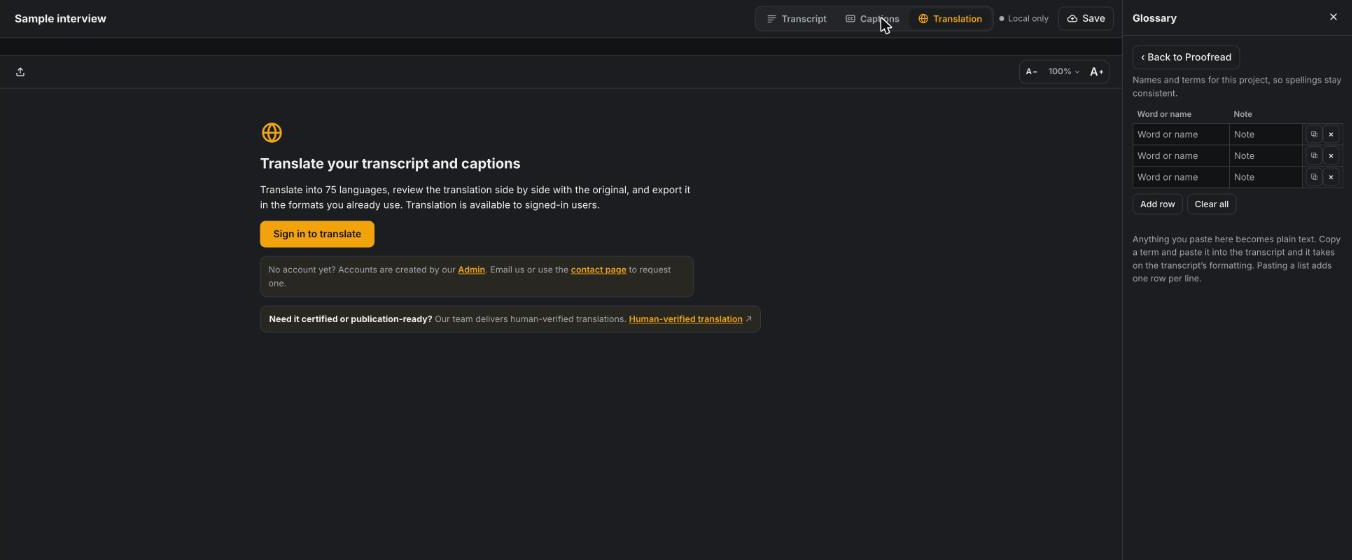
Machine translation is good at sentences and surprisingly bad at the words you care about most: brand names, product names, people, job titles and technical terms. A glossary tells the tool and the reviewer how each one should appear. Should “Head of People” be translated or left in English? Is your product name ever translated? Decide once, write it down.
Step 3: Translate the draft
You have three broad options:
- Translate it yourself if you’re fluent in both languages and the file is short.
- Use machine translation for a fast first draft. Quality is high for major language pairs and weaker for less widely spoken languages, so plan more review time for those.
- Hire a professional translator for anything legal, medical, published or customer-facing.
Avoid the copy-and-paste route for subtitles. Pasting caption text into a general translation website loses the timing, the line breaks and the italics, and you then rebuild the file by hand. Use a tool that translates caption files as caption files.
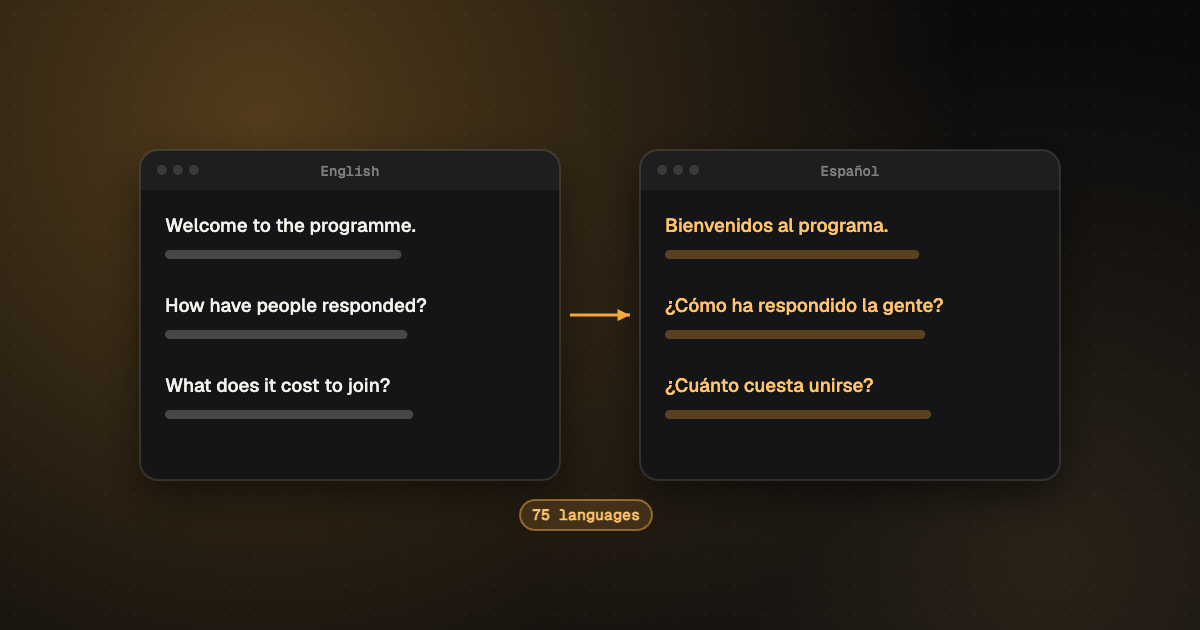
In CadreScripts Desk, signed-in users can translate a transcript or its captions into one or more of 75 languages. Each translation is kept with the project, so you can come back to it, and caption translations keep their italics and positions and are re-wrapped to the line length for the new language.
Step 4: Review the translation side by side
This is the step that makes a machine translation usable. Read the translation next to the original, row by row, and check:
- Numbers, dates and prices match the original exactly.
- Names and glossary terms are spelled the way you decided.
- Nothing was left untranslated, and nothing was added.
- The tone fits. Formal or informal “you” matters in languages like German, French and Spanish.
- Questions are still questions and end punctuation still makes sense.
The editor helps by marking rows that may need a second look: a number missing or changed, different end punctuation, a fixed translation or name not used, text left untranslated, italics lost, or a caption much longer than the original. A Checks filter shows just those rows, and you can mark each paragraph as reviewed as you go.
The most dangerous translation errors read perfectly well. A smooth sentence that says the opposite of the original won’t look wrong to someone who doesn’t read the source language. That’s why review needs someone who knows both.
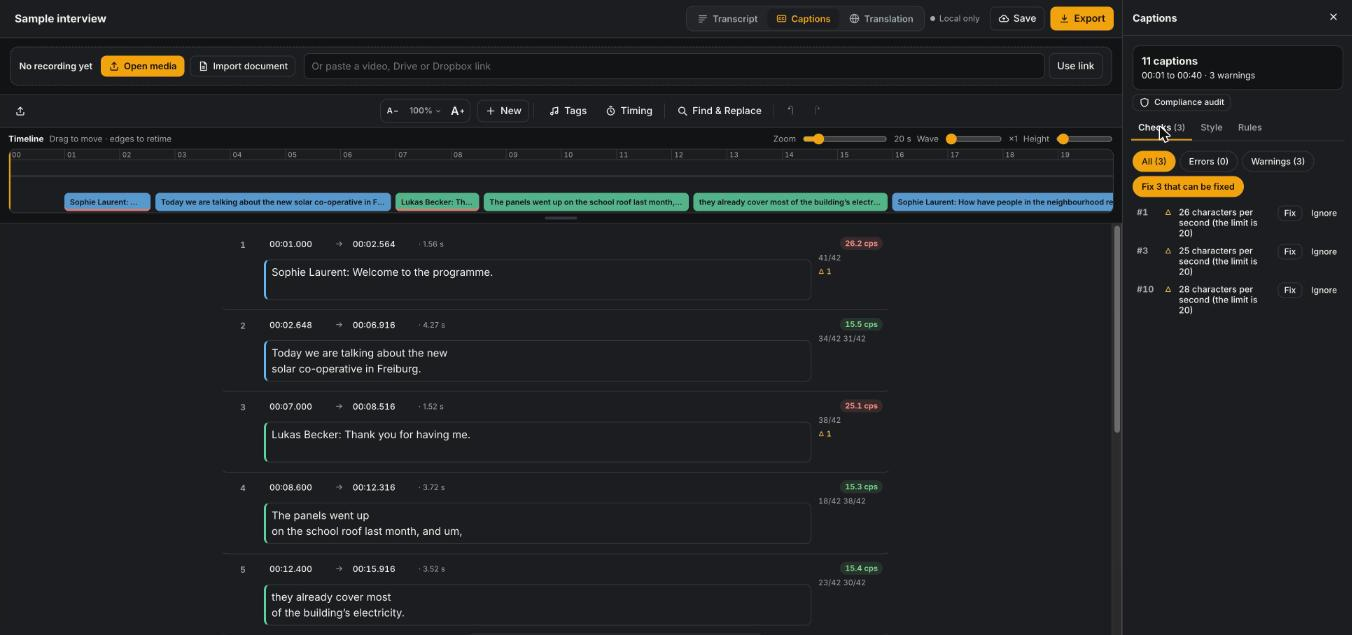
Step 5: Fix subtitle length and reading speed
Translations change length. Spanish, French and German text often runs longer than the English it came from, while Chinese and Japanese are much shorter on screen but have their own limits. After translating subtitles:
- Re-check characters per line for the new language. English commonly allows 42; Chinese and Korean around 16.
- Re-check reading speed. A caption that was fine in English can be too fast once it gains 20% more characters.
- Shorten, don’t cram. Good subtitle translation condenses: it keeps the meaning and drops filler, rather than squeezing every word in.
Step 6: Export in the right format
| You need | Export |
|---|---|
| A translated document to share | Word or PDF |
| Original and translation together for review or a client | A side-by-side PDF table (time, original, translation) |
| Subtitles for YouTube, Vimeo or LinkedIn | SRT |
| Subtitles for a website player | WebVTT |
| Streaming or broadcast delivery | TTML or SCC, as the platform specifies |
Exports in other scripts need a little care. Word keeps every language exactly. PDFs handle accented letters, Greek, Cyrillic, Chinese, Japanese and Korean; for Arabic, Hebrew, Hindi, Thai and other scripts whose letters join or change shape, the editor exports to Word instead and tells you before it does.
Machine or human translation?
Here’s how we’d decide, based on what the translation is for.
| Use | Our pick |
|---|---|
| Understanding an interview for internal research | Machine translation, light review |
| YouTube subtitles for a wider audience | Machine translation plus a fluent reviewer |
| Course or training video sold to customers | Professional translation or thorough human review |
| Legal, medical, HR or compliance material | Professional translation |
| Marketing that must sound native | Professional translation and localization |
Our translation service uses native-speaking linguists from $0.06 a word, and subtitles with translation start from $4.00 a minute (see pricing). If the recording itself is in another language, foreign-language transcription by native speakers starts from $3.00 a minute.
What translation costs: a worked example
Prices are easier to judge with a real file in mind. Take a 30-minute interview: at a typical speaking pace that’s somewhere around 4,000 to 4,500 words of transcript. Here’s how the routes compare using our public prices (checked 6 November 2026; always confirm on the pricing page).
| Route | How it’s priced | 30-minute interview, roughly |
|---|---|---|
| Machine translation, you review | Part of an editor plan, plus your time | Your review time: an hour or two |
| Human translation of the transcript | From $0.06 a word | About $240–$270 for 4,000–4,500 words |
| Subtitles with translation | From $4.00 a minute of video | About $120 |
Two things move the price: the language pair (rarer pairs cost more) and the subject (legal and medical text takes specialist translators). One-time projects also have a minimum order, so tiny files cost the minimum rather than the per-word rate.
Working with a translator: what to send
A translator can only be as consistent as the brief you give them. Send:
- The checked original, in the format you want back (Word for documents, SRT or VTT for subtitles).
- The recording, so they can hear tone, emphasis and who is speaking.
- Your glossary: names, product terms, and anything that must stay in English.
- The audience and the register: formal or informal, which country (Mexican or European Spanish? Brazilian or European Portuguese?).
- Delivery rules for subtitles: characters per line, lines per caption, reading speed.
That last point catches people out. If your platform needs 37 characters per line and the translator works to 42, you’ll be re-wrapping 600 captions by hand.
Translation vs localization
Translation changes the words. Localization changes whatever needs changing for the audience to feel it was made for them: currencies, date formats, units, jokes, cultural references and sometimes the examples themselves. “Bring a plate to the barbecue” means something very specific in Australia; translated literally into German it means a piece of crockery.
Most transcripts need translation. Marketing videos, onboarding courses and anything with humour often need localization. If you’re not sure, ask: “Would a native viewer notice this was made somewhere else, and would that matter?” If yes, budget for localization.
Recordings that already mix languages
Some recordings switch languages mid-sentence: a Spanish-English interview, a European team meeting, a family history recorded across generations. Translate those carefully. First get a transcript that writes each part in the language spoken (in the editor, set a second language under “Also spoken” before transcribing). Then decide whether the translation should convert everything into one language or keep some original phrases, and tell your reviewer.
Translating a whole document, not just a transcript? With an account, Translate a document brings Word and PDF files back in their original layout, and exports Rich Text, HTML, CSV, XLIFF or TMX for translation tools. If an edit goes wrong, restore the original translation in one click. Request access.
Translating subtitles? The subtitle converter switches between SRT, WebVTT, SBV and text, and the caption reading speed checker checks the translated lines against reading-speed rules. Original transcript only in PDF? The PDF to Word converter makes it editable first. All free in your browser, with nothing uploaded and no sign-up.
Frequently asked questions
How do I translate a transcript into another language?
Check the original first, add names and terms to a glossary, translate it with a tool or a translator, review it side by side with the original, then export it as Word, PDF or a side-by-side table.
Can I translate SRT subtitles for free?
You can translate the text with free tools, but you’ll usually lose timing or formatting and need to rebuild the file. A caption editor that translates SRT files directly keeps the timing; check that it re-wraps lines for the new language.
Is machine translation accurate enough for subtitles?
For major languages it often gives a good draft, but it still needs review for names, numbers, tone and reading speed. For published or paid content, use a fluent reviewer or a professional translator.
Why are my translated subtitles too long?
Many languages need more characters than English for the same meaning. Re-wrap the lines, condense the wording and re-check reading speed after translating.
Should I translate captions or the transcript?
Translate whichever you’ll deliver. If you need both, finish the transcript, make captions from it, then translate the captions so the timing is right.
Your next step
Start with a clean original: try the editor free in your browser, and request an account when you’re ready to translate. If it has to be right in every language, get human translation from our linguists.